How to Use Excel for Accounting: A Practical Setup (2026)

A single-entry cashbook you can build today: four tabs, six columns, one sign convention, and a month-end routine that reconciles to the bank.
What this Excel cashbook does and does not do
To use Excel for accounting in a small service business, start with a cashbook: record receipts and payments, assign categories, calculate totals and compare the records with the bank statement each month. This guide builds that workbook with four tabs and a worked example.
It is a single-entry cash record for one business, one bank account and one currency. IRS Publication 583 describes single-entry as the simplest system to maintain, while noting that it may not suit everyone. A cashbook alone does not produce a complete profit calculation or a tax return. Inventory, payroll, accruals and currency conversion need records beyond this setup.
Use the date you receive money or make a payment, retaining the supporting document. A check you issue can appear in the cashbook before it clears the bank; record that timing difference during reconciliation. An unpaid invoice has no cash entry yet. These are cashbook instructions, not a choice of tax accounting method.
The workbook: four tabs and what belongs in each
Create four tabs and keep entries separate from calculations:
Transactions: one row per receipt or payment, with no typed subtotals inside the table.
Categories: the names you use to classify those rows.
Monthly Summary: totals calculated from Transactions.
Reconciliation: opening balance, statement balance and uncleared items.
The formulas below use table and column names. Microsoft calls these structured references; they adjust as data is added to or removed from the table.
Transactions tab: exact columns and one sign convention
On Transactions, put these six headers in row 1: Date, Description, Category, Money In, Money Out, Month. Use Description for the invoice, check or receipt reference you will need when tracing an entry.
Select the headers and data rows, choose Home > Format as Table, confirm the range and mark that it has headers. Select a cell in the resulting table, open Table Design, type Transactions in the Table Name box and press Enter. That exact name is used in the formulas below.
Before entering Month values, select those cells and choose Home > Number Format > Text. Enter labels such as 2026-04 consistently, with no extra spaces. Microsoft documents formatting empty cells as Text before entering values. Keep Money In and Money Out numeric; the text setting is for Month only.
Enter positive amounts, using Money In for receipts and Money Out for payments. Leave the other amount cell empty. A supplier refund goes in Money In under the relevant expense category, so keep refunds separate when interpreting category totals.
A hypothetical month in the Transactions table
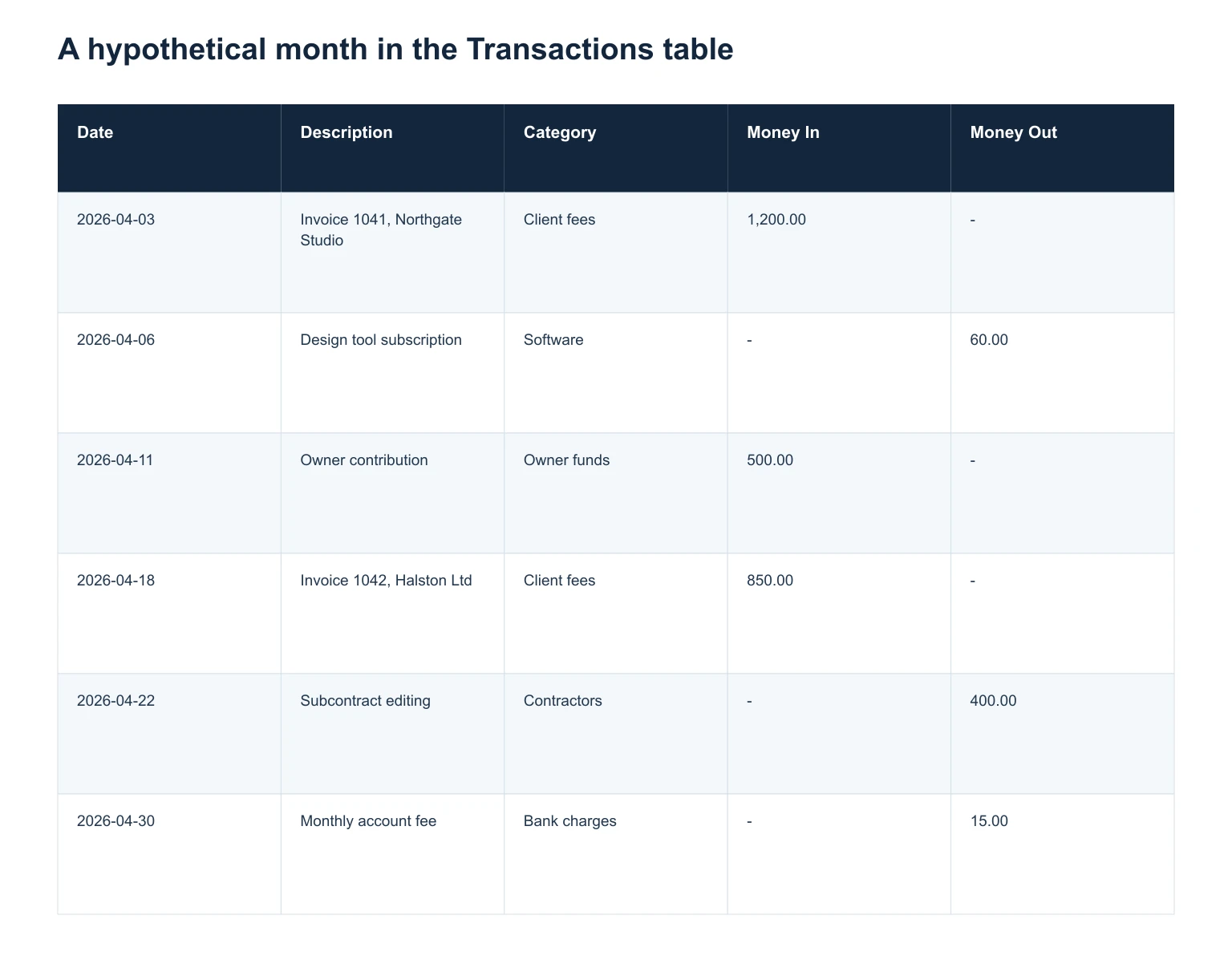
Hypothetical April entries: Money In totals 2,550.00 and Money Out totals 475.00. A hyphen means an empty amount cell. Add 2026-04 as text in the sixth column, Month, which is omitted here for space.
Date: 2026-04-03; Description: Invoice 1041, Northgate Studio; Category: Client fees; Money In: 1,200.00; Money Out: -
Date: 2026-04-06; Description: Design tool subscription; Category: Software; Money In: -; Money Out: 60.00
Date: 2026-04-11; Description: Owner contribution; Category: Owner funds; Money In: 500.00; Money Out: -
Date: 2026-04-18; Description: Invoice 1042, Halston Ltd; Category: Client fees; Money In: 850.00; Money Out: -
Date: 2026-04-22; Description: Subcontract editing; Category: Contractors; Money In: -; Money Out: 400.00
Date: 2026-04-30; Description: Monthly account fee; Category: Bank charges; Money In: -; Money Out: 15.00
Keep categories consistent and separate non-sales receipts
Begin with categories you can distinguish from the documents: Client fees, Other income, Owner funds, Loans, Contractors, Software, Professional fees, Bank charges, Equipment, Travel and Transfers. Adapt the list with your bookkeeper as transactions require it.
Keep owner contributions, loan proceeds and transfers separate from sales. In this example, the owner's 500.00 belongs to Owner funds. A loan would use Loans instead.
Copy category names consistently from the Categories tab. The SUMIF examples use category criteria, so differing labels can separate entries you intended to group. If you add data validation to existing entries, Microsoft warns that Excel does not automatically identify their invalid values; it provides a way to circle invalid data. Validation does not decide the accounting category for you.
Totalling receipts and payments without counting owner funds as sales
On Monthly Summary, use SUMIF to total one category across the Transactions table. Microsoft gives its syntax as SUMIF(range, criteria, [sum_range]): test the Category column and add the corresponding Money In values.
=SUMIF(Transactions[Category],"Client fees",Transactions[Money In])
For one month and one category, use SUMIFS, which handles multiple conditions and puts the values to add first. The Month labels must be text as described above:
=SUMIFS(Transactions[Money In],Transactions[Month],"2026-04",Transactions[Category],"Client fees")
To total Software payments for that month, use the Money Out column:
=SUMIFS(Transactions[Money Out],Transactions[Month],"2026-04",Transactions[Category],"Software")
The example returns 2,050.00 for Client fees and 60.00 for Software payments. Total receipts are 2,550.00, including the owner's 500.00. Keep category totals distinct from the total movement of cash. Check that amount cells contain numbers: amounts stored as text can be left out of totals.
Opening balance, period movement and the closing check
Keep the opening balance in a labelled cell on Reconciliation, outside the transaction rows. Including it as a receipt would overstate the period's inflows.
Suppose the opening cashbook balance is 2,400.00 on 1 April 2026. Using the six hypothetical entries above:
2,400.00 + 2,550.00 - 475.00 = 4,475.00
The closing cashbook balance is 4,475.00. The 2,075.00 increase includes the owner's contribution, so it is not profit. This example also treats the 400.00 subcontractor payment as a check issued on 22 April that has not cleared by month end. The next step explains the resulting bank difference.

Month-end goes quickly when the paperwork is already sorted, and slowly when it is not.
Monthly reconciliation: outstanding items and the charges you never saw
Compare the workbook with each monthly statement. IRS Publication 583 recommends monthly reconciliation and identifies unrecorded bank charges and uncleared checks or deposits as possible differences.
Match each statement line to a cashbook row, checking the amount and reference. Keep the check marks on a saved statement or separate review list.
Record missing bank charges or other genuine movements after checking that they are not already entered. The example's 15.00 fee is included in the table and totals, so do not add it again.
List cashbook items that have not cleared, with their dates, amounts and supporting records. Check their later clearance rather than deleting them.
In the hypothetical example, the bank statement closes at 4,875.00. The issued 400.00 check remains outstanding:
4,875.00 - 400.00 = 4,475.00
That adjusted statement balance agrees with the cashbook. Investigate any remaining difference: it may be an entry error, missing transaction or another timing item. Do not insert an unexplained amount just to make the totals agree.
Supporting documents and a safe way to correct an entry
Keep invoices, receipts and monthly bank statements where each transaction's Description reference can lead you back to them. The IRS explains that supporting documents contain the information recorded in the books. Retention depends on the document and event; keep records for as long as they are needed to support reported income or deductions.
For this workbook, keep a separate change log with the affected row, old value, correction, reason and review date. A category or typing correction is not a new receipt or payment. Correct the affected record, retain the earlier version and recheck its category totals and reconciliation. For a period already reported or handed to an accountant, agree the correction with them first.
Add a new transaction only for a genuine new movement of money, such as a refund. This distinction keeps a clerical fix from changing the bank balance. Save a dated copy of the workbook with the reviewed statement when you finish the month.
Duplicate, date and number checks before month end
Check the entries before relying on their totals.
Sort by Date and read down for repeats. A payment entered once from the receipt and again from the statement is the usual duplicate, sitting a few rows apart with the same amount.
Check that each Month label matches the date on its own row. A mistyped label drops that row out of the month's SUMIFS total without any warning.
Scan both amount columns for rows carrying a figure in each, and for anything typed as a negative.
Locking the formula cells, and what that protection is not
Lock formula cells and protect the summary and reconciliation sheets to reduce accidental edits. Leave cells intended for input editable. Microsoft documents worksheet protection as a way to control changes to locked cells, and explicitly says it is not a security feature.
Control access to the workbook separately and retain backups. Do not assume that a protected sheet makes financial information safe to distribute. Keep any protection password securely: Microsoft says Excel cannot recover a lost password.
When the cashbook stops being reviewable
Reconsider the setup when you add accounts, multiple people edit the file, or you need to track unpaid invoices and bills. A double-entry system records assets and liabilities as well as income and expenses; this cashbook has a narrower job.
If your books move into QuickBooks Online, Booke AI works inside its connected bank feeds. The accounting platform remains the system of record, and people retain final review and close responsibility. See bookkeeping automation software for that workflow, or browse our Excel for accounting resources.
Frequently asked questions
Is this cashbook enough for a complete set of accounts?
It records receipts and payments for one bank account. It does not track every asset, liability or unpaid invoice. Ask your accountant which additional records your business needs.
Why does my monthly formula return zero?
Check the table name and column headers first, then the category spelling and Month labels. The example matches the text 2026-04, so use the text format before entering those labels. Check that the amount cells are numeric.
How do I correct an entry after reconciliation?
Log the correction, retain the previous version and recheck the affected period. Do not invent a new cash entry for a category or typing error. Consult the accountant responsible for any period already reported.
Can I treat Money In less Money Out as profit?
No. Owner contributions and loans can increase cash without being sales, while the cashbook leaves unpaid items outside its rows. Its movement total is not a complete profit calculation.
How this guide was put together
The Excel instructions draw on Microsoft Support; the recordkeeping context comes from IRS guidance. The workbook design and all example figures are illustrative. Sources checked on 10 September 2026.
Explore Booke AI workflows
Sources