OpenAI dots for small business bookkeeping: what an always-on agent can do in QuickBooks and Xero
OpenAI's launch post for dots has a line that every small business owner will read twice. An early tester's dot "noticed he'd forgotten to invoice a publication, prepared the invoice, and sent it after his approval."
We build Booke AI, an AI bookkeeper for QuickBooks Online and Xero, so we read OpenAI's launch post, its help center pages and the QuickBooks and Xero plugin pages for ChatGPT. Our question was practical: if you run a small business, what can a dot do with your books, what can't it do, and which rules should you set before you connect anything?
The short answer: start with reports and drafts. The QuickBooks plugin can take actions such as creating invoices; the Xero plugin is read-only. Daily bank-feed work isn't listed for either.
What are OpenAI dots?
OpenAI calls dots "remarkably capable, always-on agents built to handle everything." OpenAI launched them on September 29, 2026. Each dot runs on GPT-6 Astra with its own cloud computer and browser, and reaches your other tools through ChatGPT plugins. You can message it in ChatGPT, Slack or Teams, or talk to it on a voice call.
"Introducing dots, powered by GPT-6 Astra. Remarkably capable, always-on agents built to handle everything." (OpenAI on X)
Three things matter for an owner:
It reads in the background. OpenAI calls this "proactive research." The dot looks through the apps you've connected for ways to help, using tools that are read-only and "can't send messages, change app content, or control your browser or computer."
It acts under your rules. Anything beyond reading follows your app permissions, your approval rules and OpenAI's safety checks.
It runs scheduled checks. You can ask for a recurring check, like OpenAI's example of reviewing your calendar each morning, within what your connected apps allow.
OpenAI dots pricing and availability
Dots are rolling out gradually, and OpenAI says access may take several days to reach your account. Availability depends on your plan and where you are:
ChatGPT Pro: available in supported markets outside the European Economic Area, Switzerland and the UK. Pro starts at US$100 a month.
ChatGPT Business Premium: available in all supported ChatGPT regions, including the UK. Premium seats cost US$100 per user per month billed annually, or US$125 billed monthly.
Enterprise, Edu and Healthcare: a beta that the workspace admin has to switch on. It's off by default.
Your first dot is included in a Pro or Business Premium plan at no extra cost, with an allowance for deeper work that OpenAI is extending for the first month after launch. Chatting with your dot doesn't count toward your ChatGPT usage limits, but tasks it starts in Codex or ChatGPT Work count as usual.
You create a dot in the ChatGPT desktop app or in ChatGPT on a desktop browser. You can't create one on mobile, though you can message it from the mobile app afterwards.
OpenAI dots vs Meta Muse for your books
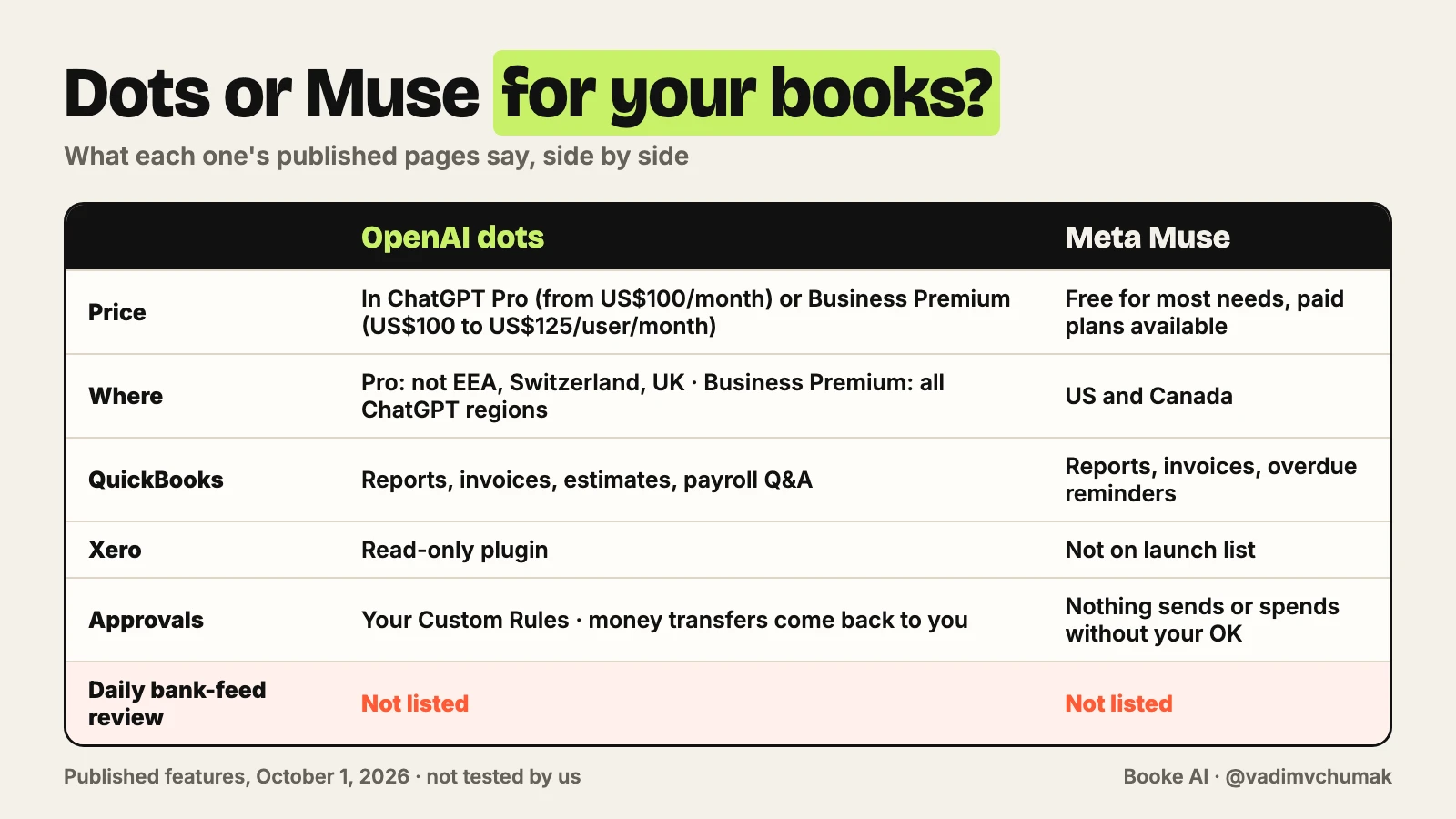
Meta announced Muse for Small Business, with a QuickBooks connection, on September 29, the same day as dots. Both keep working when you aren't chatting. Meta says Muse is "always working for you" and will proactively flag emails that need a response; a dot runs read-only background research and the scheduled checks you set. For your books, the differences are price, region and what each one can reach.
Price. Meta says Muse is free for most of what people need, with paid plans for more. A dot comes with ChatGPT Pro, from US$100 a month, or Business Premium, US$100 to US$125 per user a month.
Where. Muse is available in the US and Canada. Dots on Pro are in supported markets outside the EEA, Switzerland and the UK; on Business Premium, in all supported ChatGPT regions.
QuickBooks. Intuit's Muse connector covers profit and loss, cash flow, the balance sheet with a peer comparison, top customers and products, payment-enabled invoices, and overdue tracking with reminders. Intuit's ChatGPT plugin, which a dot uses, also lists estimates, payment tools and product management; for payroll, Intuit lists questions now and running payroll as coming next.
Xero. Xero isn't on Meta's launch connector list. A dot can use Xero's ChatGPT plugin, which is read-only.
Approvals. Muse's rule is that "nothing publishes, sends, or spends without your approval." With a dot, you can set Custom Rules for supported types of action, and transferring money always comes back to you.
Daily bank-feed review. Not listed for either.
Our take on which fits: Muse if you're in the US or Canada, your business already runs on Instagram, Facebook and QuickBooks, and you want to start free. A dot if you're elsewhere, use Xero, or want an agent that takes on long tasks on its own computer and you already pay for Pro or Business Premium. In the UK, that means Business Premium. For a closer look at what Muse can do in QuickBooks, see Meta Muse and QuickBooks.
"Today, we're announcing Muse for Small Business. Muse, Meta's new personal AI agent, is one of the most important products we've built for the era of personal superintelligence." (Meta Newsroom on X)
Can OpenAI dots work with QuickBooks and Xero?
OpenAI's dots pages don't name QuickBooks or Xero. A dot gets to your books the same way ChatGPT does, through plugins. OpenAI's safety FAQ says "plugin permissions are shared across dots, ChatGPT, ChatGPT Work, and Codex," so if you've already connected QuickBooks or Xero in ChatGPT, your dot can use that connection within the permissions you granted.
The QuickBooks plugin can act
The QuickBooks plugin is built by Intuit. Its page on OpenAI's site lists profitability and cash flow analysis, comparisons with similar businesses, profit and loss statements, cash flow statements, balance sheets and aging reports for money owed to you and by you. It also lists managing "invoices, estimates, payments, customers, products, and payroll directly from chat," and uploading or pasting transactions for analysis.
Intuit notes that payment features need an eligible QuickBooks Payments account and a QuickBooks Online subscription, and aren't available outside the US or in US territories. For payroll, Intuit's July announcement covers questions about payroll and lists running payroll as coming next. The plugin includes skills such as chase-overdue-invoices and email-to-estimate-invoice. For ChatGPT, Intuit says "every action remains reviewable and human-verified."
The Xero plugin can only read
The Xero plugin is built by Xero. It covers your profit and loss, cash position, outstanding invoices, top customers and more, with links back to Xero. In the plugin's own words, "ChatGPT connects with read-only access." One caveat for dots: OpenAI's FAQ says a dot can keep context from your plugins for as long as you keep the dot, so treat what it learns from Xero as stored until you reset it.
So on QuickBooks, a dot could draft and send an invoice after you approve it. On Xero, through this plugin, it can tell you which invoice is overdue, but it can't create or change anything in your Xero organisation.
The plugin page also notes that availability depends on the plugin, your plan and your workspace settings, and that some connections need an admin to set them up or approve them.
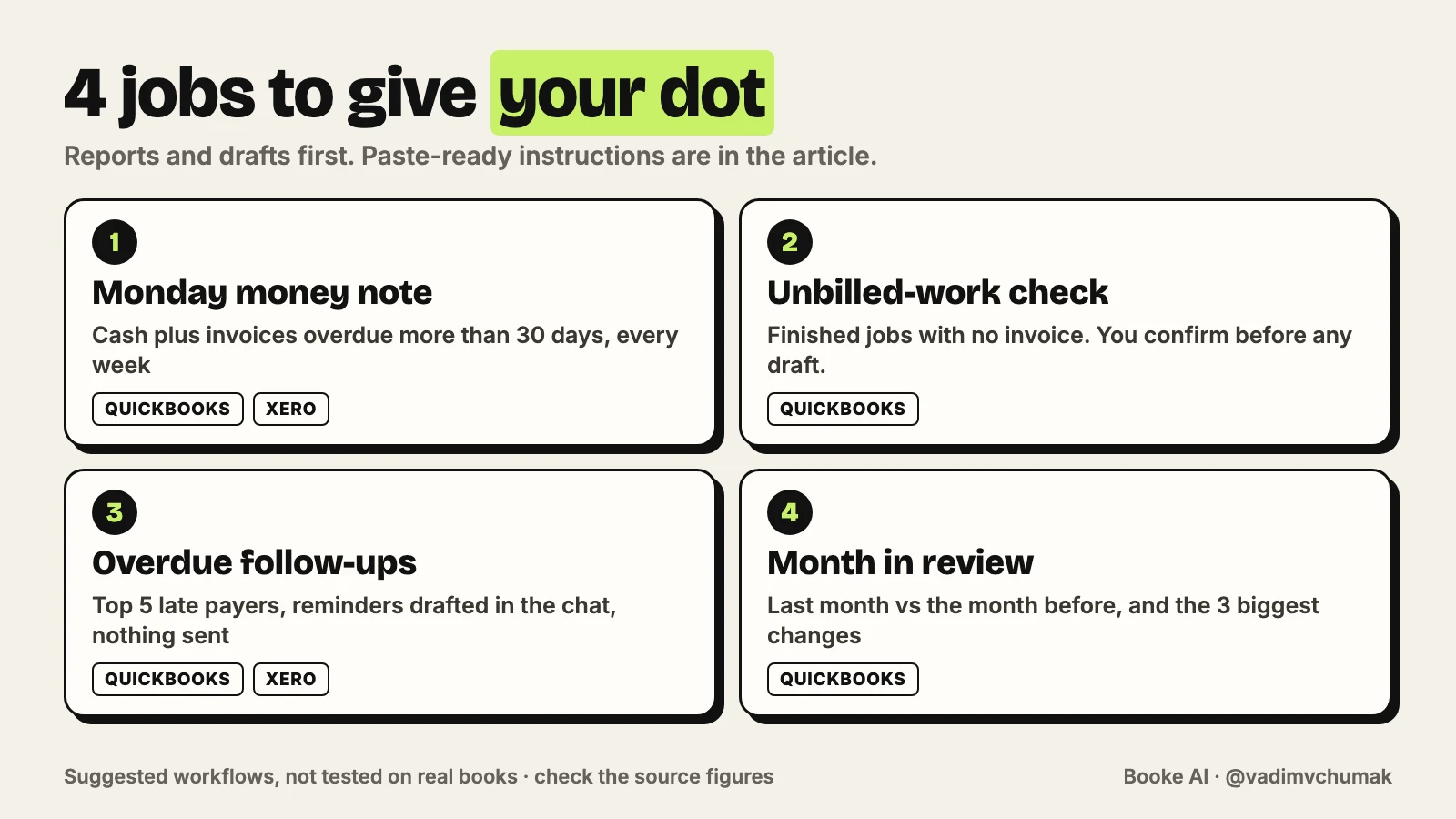
How to use OpenAI dots for bookkeeping: 4 jobs to start with
These line up with what the plugins list. Treat them as starting points rather than tested recipes: we haven't run a dot on real books. Each comes with an instruction you can paste. Add this line to any of them so you can check the answer:
Show the reporting period, the source report or Xero link, and any missing figures. I'll compare the result with my books before relying on it.
1. A Monday money note (QuickBooks or Xero)
A scheduled check can summarize your cash and the customer invoices still unpaid. The Xero plugin page includes sample prompts for both.
Every Monday at 8 am, summarize my cash position and list customer invoices overdue by more than 30 days. State the dates and source reports, and flag anything missing. Don't contact anyone or change any records.
2. An unbilled-work check (QuickBooks)
OpenAI's invoice example doesn't say which tools the tester used. Our reading is that a dot with your email and QuickBooks connected could do something similar: notice a finished job that never got an invoice, prepare one and ask before sending. On Xero, the plugin is read-only and invoice creation isn't listed, so the dot could only point out the gap.
Each Friday, compare jobs marked done in my email and calendar this week with existing invoices in QuickBooks. Show possible matches before calling anything unbilled, and list what's left with your evidence. Draft invoices only after I confirm each one, and never send without my approval.
3. Overdue follow-ups as drafts (QuickBooks or Xero)
Both plugins can rank open invoices by amount and overdue status where that data is available. The QuickBooks plugin includes a chase-overdue-invoices skill.
Rank my five most overdue customers by amount and days overdue. Draft a short, polite reminder for each here in the chat. Don't send anything.
4. A month in review (QuickBooks)
The QuickBooks plugin's own sample prompt asks for last month's profit and loss compared with the month before, with "the three largest drivers of the change in net profit."
On the first working day of each month, compare last month's profit and loss with the month before and explain the three biggest drivers of the change. Mark any figure you couldn't confirm.
Can a dot do my bookkeeping?
Daily bank-feed categorization, matching and reconciliation aren't listed for either plugin. That's the work of going through each new bank transaction, putting it in the right category, matching it to a receipt or bill, and reconciling the account. Booke AI is built to prepare that work for review: it matches bank lines to invoices, bills and receipts in QuickBooks Online and Xero, and when an expected document is missing, it asks for it instead of reconciling without it.
There's also a separate feature called Finances in ChatGPT. It connects personal bank accounts through Plaid, for Plus and Pro users in the US, so you can review spending, bills and subscriptions. It's built for personal money, and OpenAI states that ChatGPT can't move money or pay bills through it. Don't confuse it with business bookkeeping.
OpenAI dots safety: the controls that matter for your books
OpenAI gives you four behaviors for Custom Rules, which you can use for supported types of action:
Take action without asking
Take action if pre-approved, meaning you asked for it explicitly in your prompt
Ask before taking action
Hand off to you
Some limits apply whatever your rules say. OpenAI's FAQ says the most sensitive actions, "like changing a password or transferring money require you to take over so you can complete them yourself." Purchases with a card saved on a merchant's website need your approval. Permanently deleting data may need approval each time.
"You always stay in control. Set boundaries and specify what your dot can do on its own, when it should ask first, and what it should never do." (OpenAI on X)
Before certain actions, a second system called Auto-review checks the plan against your instructions and rules. OpenAI's example: before your dot sends an email, Auto-review checks the recipient and the message "to help catch a wrong address or information you did not intend to share." One approval doesn't cover future messages, so make each one specific:
Before you send anything, show me the customer, the recipient address, the amount and the exact message, and wait for my approval of this one action.
OpenAI is also direct about the limits. Your dot "can make mistakes, including when following your rules." Protections against malicious instructions hidden in emails or documents "help reduce the risk," and the FAQ adds that they "do not eliminate it." Whether a finished action can be undone "depends on the action and the app involved."
Three data points are worth knowing before you connect your books:
Your dot can retain context from your plugins for as long as you keep the dot. Disconnecting QuickBooks or Xero stops new access but doesn't delete what the dot already learned. To remove that, you reset the dot, which deletes it.
You can't currently view or delete individual dot memories.
OpenAI doesn't use Business, Enterprise or Edu workspace content to train its models by default. On personal plans, your model-improvement setting decides. OpenAI also notes that people may review dot activity in limited cases, such as safety reviews, even with that setting off.
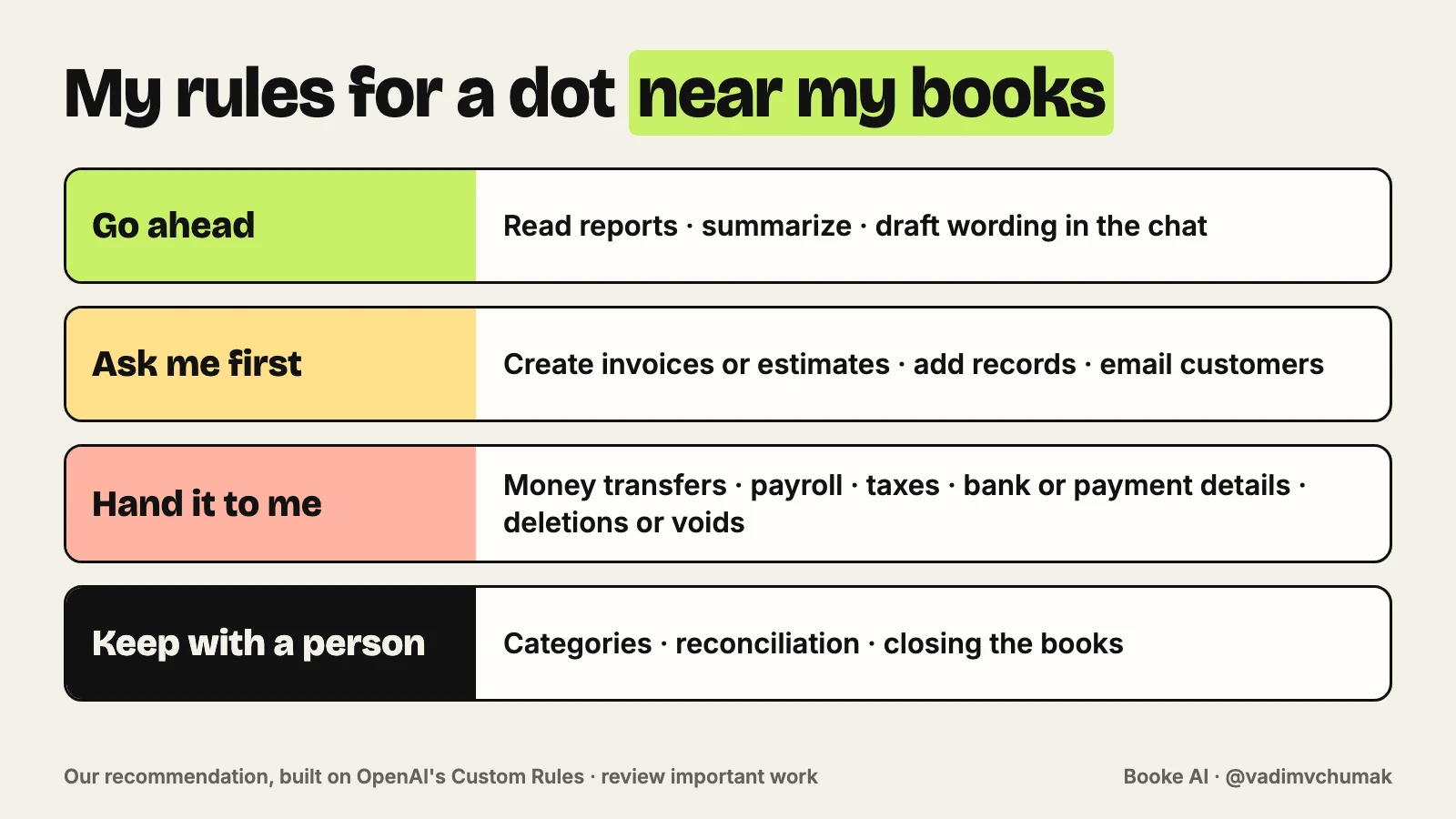
Our rules card for a dot near your books
This is our recommendation, built from OpenAI's four behaviors. Adjust it to your business, and talk to your accountant if they work in your books too.
Take action without asking: reading reports, building summaries, ranking overdue invoices, drafting reminder wording in the chat. All of it stays in front of you and changes nothing in your books.
Ask before taking action: creating or sending an invoice or estimate, emailing a customer, adding a customer or product, or anything else that creates a record in QuickBooks or reaches someone outside the business. Check the recipient, the amount and the wording every time.
Hand off to you: payroll, deleting or voiding anything, changing bank or payment details, and anything to do with taxes. Transferring money already comes back to you by default.
Keep categories, reconciliation and closing in your books, with a person responsible for them. A chat summary isn't a finished set of books.
Add this standing instruction, then check that your dot follows it:
Never move money, change bank or payment details, run payroll, handle anything to do with taxes, delete or void records, or change how transactions are categorized. If a task needs one of these, stop and hand it to me.
Before you connect your books to a dot
Decide which workspace it lives in. If staff data or client data will pass through it, a Business workspace keeps that content out of model training by default.
Start with one plugin and the smallest useful permission. On Xero, the plugin is read-only anyway.
Write your Custom Rules before you give the dot its first task, not after the first surprise.
Give it one scheduled job, such as a weekly overdue-invoice summary, and check the results against QuickBooks or Xero for a few weeks.
Open Activity View each week to see what the dot did in the background and what it delegated.
Know which off switch you need. Need a break? Pause. Need to stop new access to your books? Disconnect the plugin. Need the dot to forget what it learned? Reset, which also deletes its conversations, memories and scheduled tasks.
Where Booke fits
Here's how Booke AI handles the daily bank-feed work in QuickBooks Online and Xero:
It uses what you already have. Your existing bank feed stays in place, with no new bank connection. You invite Booke as a user to your books, and they stay in QuickBooks Online or Xero.
It follows your rules. You can set thresholds such as "all transactions over $50 need receipts," and Booke brings you only the items that need attention.
It shows its work. Low-confidence or unusual transactions come to you with a suggested treatment and the reasoning behind it.
Booke is software, not a bookkeeping service, so the leftover decisions stay with you or your accountant. The AI Bookkeeper Business plan costs US$129 per business per month.
Our advice: let a dot handle what its plugins list, like reports, reminders and drafts, and judge Booke by the bank-feed work left after QuickBooks' or Xero's own features. If you run your business on QuickBooks Online or Xero, you can get started or check the pricing.
FAQ
What are OpenAI dots?
Dots are always-on agents in ChatGPT, launched by OpenAI on September 29, 2026. Each one runs on GPT-6 Astra, has its own cloud computer and browser, and works through the ChatGPT plugins you connect. It can research in the background with read-only tools and run scheduled checks you set.
How much do OpenAI dots cost?
Your first dot is included in ChatGPT Pro, which starts at US$100 a month, or in a Business Premium seat, which costs US$100 per user per month billed annually or US$125 billed monthly. OpenAI says you'll be able to add more dots later.
Are OpenAI dots available in the UK and the EU?
On ChatGPT Pro, not at launch: Pro access excludes the European Economic Area, Switzerland and the UK. Business Premium users get dots in all supported ChatGPT regions.
Can ChatGPT work with QuickBooks?
Yes, through Intuit's QuickBooks plugin for ChatGPT. Its page lists reports, benchmarks, invoices, estimates, payments, customers and products. Intuit describes payroll questions as available and running payroll as coming next. Payment features need an eligible QuickBooks Payments account and a QuickBooks Online subscription, and aren't available outside the US or in US territories. A dot can use the same plugin within the permissions you grant.
Can ChatGPT work with Xero?
Yes, through Xero's plugin for ChatGPT, which is read-only. It answers questions about profit and loss, cash, outstanding invoices and top customers, with links back to Xero. It doesn't list creating or changing anything in Xero.
OpenAI dots or Meta Muse: which is better for a small business?
It depends on where you are and what you use. Muse is available in the US and Canada, free for most needs, and connects to QuickBooks but isn't listed for Xero. A dot costs from US$100 a month, works in more regions on Business Premium, and can also read Xero. Neither lists daily bank-feed review.
Can ChatGPT do my bookkeeping?
It can help with parts of it: reports, explanations, invoice drafts and, on QuickBooks, actions such as creating invoices after you approve them. Daily bank-feed review, categorization and reconciliation aren't on the QuickBooks or Xero plugin lists, so keep a person responsible for that work. We tested Claude Opus 5.5 and TypeSafe's Jev on synthetic books in Claude Opus 5.5 for small business bookkeeping and Jev AI for small business bookkeeping.
Can an OpenAI dot move money?
No. OpenAI's FAQ says the most sensitive actions, like changing a password or transferring money, require you to take over and complete them yourself. Purchases with a card saved on a merchant's website need your approval.
Does OpenAI use my business data from dots to train its models?
Not by default for Business, Enterprise or Edu workspaces. On personal plans, your model-improvement setting decides. OpenAI notes that people may review dot activity in limited cases, such as safety reviews.
Do I still need a bookkeeper if I use a dot?
A dot can take reports, summaries and drafts off your plate, but categories, reconciliation, payroll and taxes still need a responsible person, whether that's you, your bookkeeper or your accountant.
Sources
Sources reviewed October 1, 2026. We haven't tested a dot on real books, and dots are still rolling out, so check OpenAI's pages before you rely on a feature.