
How to reconcile in QuickBooks Online and fix a difference that won't reach $0.00

To reconcile in QuickBooks Online, go to All apps, then Accounting, then Reconcile. Pick the bank or credit card account, type the ending balance and ending date from your statement, and tick each transaction that also appears on the statement. When the Difference shows $0.00, select Finish now¹. QuickBooks saves a reconciliation report you can open later from History by account on the Reconcile page¹.
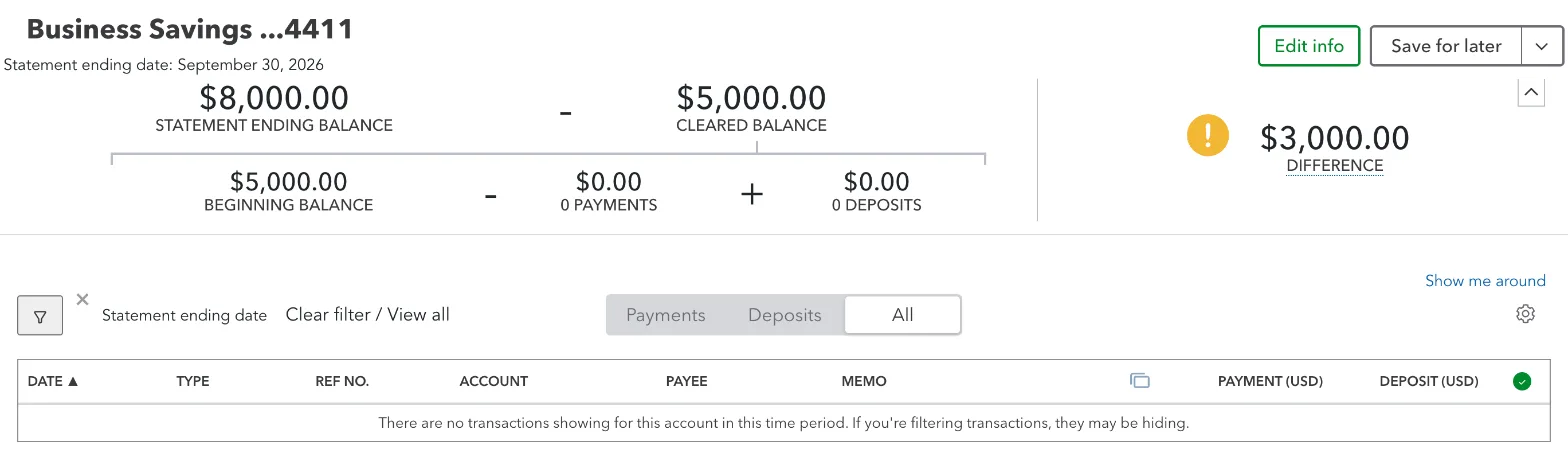
Reconciling checks that the transactions in one QuickBooks account add up to the balance on your bank or card statement¹. It compares amounts, so it can pass while the categories are wrong. In our QuickBooks Online test company, the September checking account reached a $0.00 difference with all 16 of the month's lines still in Uncategorized Income or Uncategorized Expense. The savings account in the same books came out exactly $3,000 short, because two transfers into it were booked as expenses.
We build Booke AI, AI bookkeeping software for QuickBooks Online and Xero.
Before you start
The statement for the account and month, with its ending balance and ending date.
Every bank-feed transaction for that month added to your books. Lines still waiting in Bank transactions aren't in QuickBooks yet, and you can't reconcile them until you add them².
The date your last reconciliation ended. QuickBooks shows it as the last statement ending date, and the new statement should start the day after¹.
Admin access, if you need to view or edit past reconciliations³.
A matched bank-feed line and a reconciled line aren't the same thing. Adding or matching a bank-feed line puts it in your books. Reconciling ticks it off against the statement, and a finished reconciliation shows the line with an R in the account register⁴.
How to reconcile in QuickBooks Online, step by step
Go to All apps, then Accounting, then Reconcile. The first time you reconcile, select Get started¹.
In the Account dropdown, pick the bank or credit card account.
Check the last statement ending date. If your statement starts later than the day after it, you skipped a statement or picked the wrong one.
Enter the Statement ending balance and Statement ending date exactly as they appear on the statement. For some accounts the start screen also asks for a service charge, interest earned or a finance charge. Fill these in only for amounts on the statement that aren't in QuickBooks yet.
Select Start reconciling.
Tick each transaction in QuickBooks that matches a line on the statement. The Cleared balance changes as you tick. Leave unticked anything that isn't on the statement, such as a check the payee hasn't cashed yet¹. It waits for next month's statement.
When the Difference shows $0.00, the Save for later button turns into Finish now. Select Finish now, then Done¹.
If you opened the wrong account or statement, use the arrow next to Save for later (or Finish now) and choose Close without saving. QuickBooks undoes the ticks you made since you opened it and removes the statement details you entered.
With AI Powered Reconciliation on QuickBooks Online Plus, Advanced and Intuit Enterprise Suite, you can upload the statement instead of typing the balance. QuickBooks reads the ending balance and date from the file, then lists the transactions it paired with the statement, bank-feed lines still waiting for review and QuickBooks transactions that aren't on the statement⁵. Intuit says the upload can take up to an hour to verify¹. In our test company, Get started first opened an offer to try AI-powered reconciliation, marked beta. Choosing it means agreeing to Intuit's global experts verifying your statements to improve accuracy, and you can go back to the current experience afterwards. We kept the current one. On Simple Start or Essentials, check what Plus and Advanced cost before you upgrade for this feature.
A credit card account is reconciled the same way, against the card statement¹. A payment reaches the card account only if it was recorded against the card, for example with Pay down credit card or the Credit Card Payment type in the bank feed⁶. Booked to an expense category, it never gets there.
What reconciling our test month showed
We opened Reconcile for September 2026 in our QuickBooks Online test company. It's a candle business with made-up books, seeded on purpose with the kind of bank-feed mistakes owners make. For checking and savings, we entered the ending balance from the statement our made-up bank would send, ticked every line that matched (savings had none) and closed without saving. For the card, we compared its September transactions in QuickBooks with the card statement.
Account | Statement, Sept 30 | QuickBooks, Sept 30 | Difference | Why |
|---|---|---|---|---|
Business checking | $9,526.27 | $9,526.27 | $0.00 | Every bank line is in the books, so every amount matches |
Business savings | $8,000.00 | $5,000.00 | $3,000.00 | Two $1,500 transfers from checking were booked as expenses, so savings never received them |
Chase card | Shows a $3,412.18 payment on Sept 12 | No payment in the card account | Can't balance | The autopay was booked as a checking expense, so it never reached the card account |
Checking reached a $0.00 difference as soon as we ticked its 16 lines, and QuickBooks offered Finish now. Yet $11,592.58 of the money it paid out sat on the profit and loss report as expenses. They were both savings transfers, the card payment, $980.40 of loan principal, a $2,200 personal tax payment and a $2,000 Zelle to the owner. The $5,000 the owner put in on Sept 1 sat in Uncategorized Income, so the profit and loss report counted it as income. Our balance sheet vs income statement guide shows which report each of these belongs on.
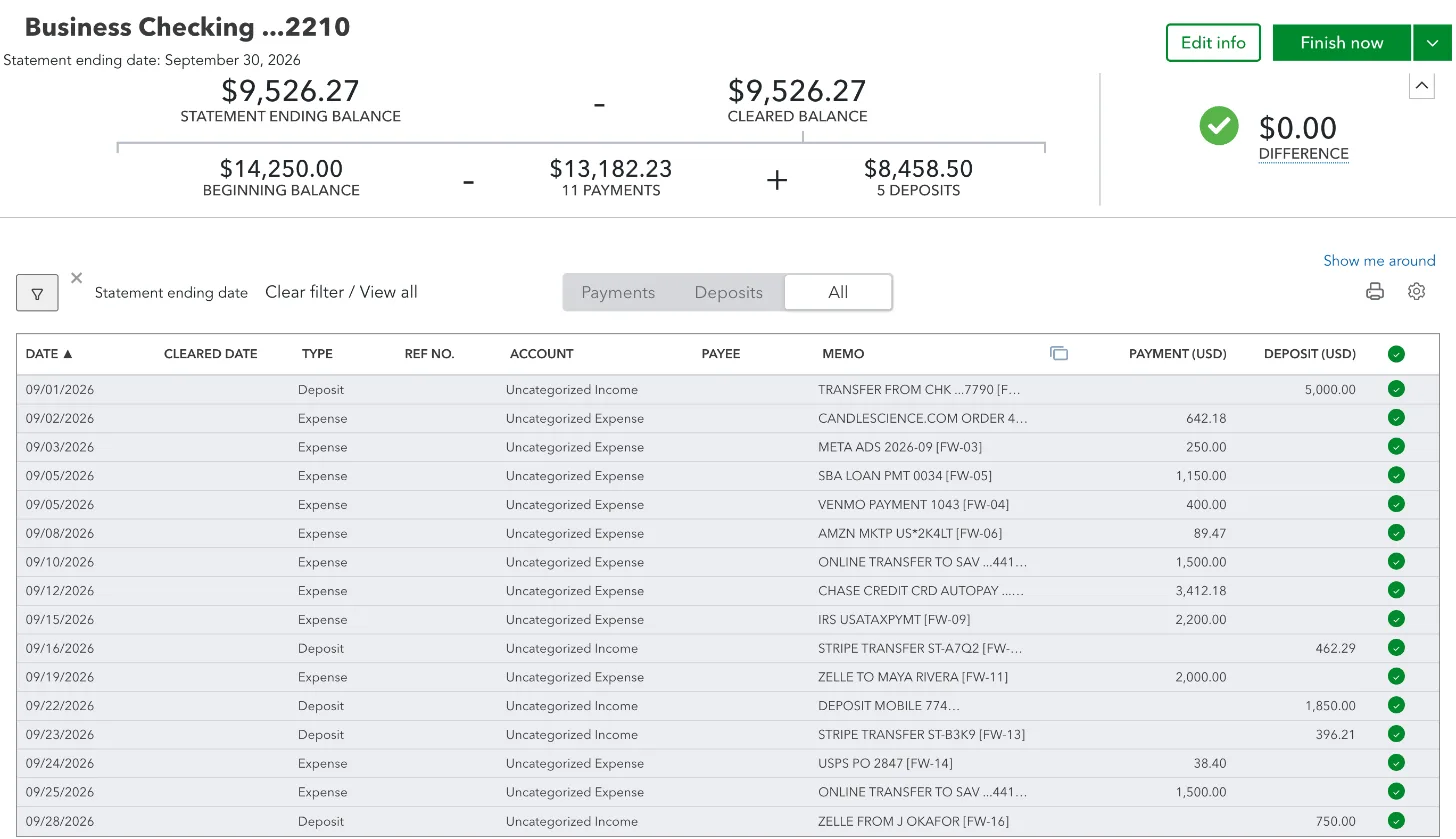
Reconciling checking, savings and the card catches only the savings transfers and the card payment, because that money should have landed in another account you reconcile. Savings showed a $3,000.00 difference with no transactions to tick. The card statement lists a payment the card account doesn't have. The tax payment, the Zelle and the owner's $5,000 leave nothing to compare against. The loan principal shows up only if you reconcile the loan account against the lender's statement. Our loan account was on the Reconcile account list next to the bank and card accounts.
How to fix a reconciliation that won't balance
Work through these in order. The first two checks change nothing in your books.
Check what you typed. Select Edit info and compare the ending balance and date with the statement².
Look at the size of the difference. If it equals one transaction or a few added together, they're missing, left unticked or ticked by mistake. Our $3,000 was the two $1,500 transfers. If it's exactly twice one amount, a payment was probably entered as a deposit or the other way round.
Add every bank-feed line from the period that's still waiting in Bank transactions².
Check the account each transaction went to. Open transactions on the statement that you can't find in the reconciliation and look at the bank or card account they were posted to². A transfer or a card payment booked as an expense leaves the other account short by exactly that amount.
Combine deposits the bank combined. If the bank shows one deposit for several customer payments, group those payments into one bank deposit in QuickBooks².
Leave out what hasn't cleared, and delete a transaction only when you're sure it's a duplicate or an error².
Add bank fees. Fees the bank took that aren't in QuickBooks yet need their own entry².
If only a few cents or dollars are left and you can't find the cause, QuickBooks can post an adjusting entry. It's offered when you choose Finish now from the arrow next to Save for later, and it posts the difference as an expense or as income to force the account to balance⁷. Intuit calls it a last resort for small amounts you're sure are errors⁷. Never use it for a gap like our $3,000.
Fixing a transfer or card payment booked as an expense
If the line isn't reconciled yet, record it again. In Bank transactions, open the account the money left, go to the Posted tab and select Undo on the line. It goes back to the bank feed⁸. Open it and change the transaction type to Transfer and pick the savings account, or to Credit Card Payment and pick the card⁹ ⁶. If the savings or card account has its own bank feed, match the other side there instead of adding it again⁹.
If checking was already reconciled with that line in it, Intuit advises asking your accountant before you change it⁸. Open the transaction from the Posted tab and change only its account line, from the expense to the savings or card account. The amount that left checking stays the same⁸.
When the beginning balance is off
The beginning balance should equal the ending balance of your last reconciliation. If it doesn't, QuickBooks won't let you continue and shows "Your account isn't ready to reconcile yet. Your beginning balance is off by..."³. Select We can help you fix it to open the Reconcile Discrepancy Report. It lists reconciled transactions that someone edited, moved or unreconciled since then, with who changed them and when, and a suggested fix for each³.
Deleted and voided transactions don't show there. Find them in the audit log under Settings³.
When it's your first reconciliation
On a first reconciliation, a wrong balance often comes from the opening balance, the amount QuickBooks started the account with. Find the entry with Opening Balance Equity in the account register and compare it with your bank's balance for that same day¹⁰. It should be the only reconciled entry in the account before you start¹⁰.
If you're several months behind, reconcile one statement at a time, oldest first, so each month's ending balance becomes the next month's beginning balance. Catch-up work like this is also what bookkeepers often price separately; our outsourced bookkeeping guide covers what they charge.
How to undo a reconciliation in QuickBooks Online
To unreconcile one transaction, open the account register from the chart of accounts, expand the transaction and select the box with the R until it's blank, then Save. That changes the beginning balance of your next reconciliation⁴.
To undo a whole reconciliation, sign in as the Primary Admin⁴:
Go to All apps, then Accounting, then Reconcile.
Select History by account and find the reconciliation. If it isn't listed, widen the report period; in our test company it was set to Since 365 Days Ago.
In the Action column, open the dropdown and select Undo.
Read the warning, tick the checkbox and select Undo reconciliation.
Select Done.
Undoing can't be reversed, and it permanently deletes that reconciliation's report and attachments⁴. Print the report first: it lists the beginning and ending balances and which transactions you cleared. QuickBooks can't export it straight to Excel, so copy and paste it if you need a spreadsheet¹¹.
Where Booke fits
Every problem in our test September is a bank-feed mistake: lines added as uncategorized, and transfers and a card payment added as expenses. Booke works inside your existing QuickBooks Online or Xero books, with the bank feeds you've already connected there. Every day it categorizes new bank-feed transactions to the accounts in your chart. It also matches them to existing or newly created accounting records and supporting documents, so the month is ready to reconcile when the statement arrives. Unclear transactions come to you for a decision. Booke automates up to 80% of manual bank-feed work for $129 per business per month. See how Booke works for small business owners.
FAQ
What does reconcile mean in QuickBooks?
It means matching the transactions in a QuickBooks account with your bank or credit card statement for the same period, until the two ending balances agree¹. Each finished reconciliation is saved as a report¹¹.
How often should you reconcile in QuickBooks?
Once a month, when each statement arrives. Intuit says you need monthly bank statements to reconcile⁵, and a month is much easier to fix while you still remember it. Between statements, a weekly pass through new bank transactions keeps the month-end list short.
Can you change a reconciled transaction in QuickBooks Online?
Yes. Changing only its category leaves the reconciled balance alone. Changing the amount or the bank account it was paid from or deposited to, or deleting, voiding or unreconciling it, moves the beginning balance of your next reconciliation³. QuickBooks shows most of these changes in the Reconcile Discrepancy Report³.
Why can't I undo a reconciliation in QuickBooks Online?
Undoing a whole reconciliation needs the Primary Admin sign-in, so ask that person or your accountant⁴. A single transaction can be unreconciled in the account register instead.
Does a reconciliation check that my categories are right?
No. It compares the amounts in one account with the statement, so a month with every line uncategorized can still balance, as our test checking account did. To check categories, read the profit and loss report for transfers, card payments, loan payments, money paid to or put in by the owner, and anything still in Uncategorized Income or Uncategorized Expense. Our bank reconciliation guide covers the reconciliation formula if you do it outside QuickBooks.
Sources
Intuit, Reconcile an account in QuickBooks Online, updated August 5, 2026.
Intuit, Fix issues at the end of a reconciliation in QuickBooks Online, updated August 25, 2026.
Intuit, Fix beginning balance issues when reconciling in QuickBooks Online, updated September 1, 2026.
Intuit, Undo or remove transactions from reconciliations in QuickBooks Online, updated August 24, 2026.
Intuit, Learn the reconcile workflow in QuickBooks Online, updated August 24, 2026.
Intuit, Record your payments to credit cards in QuickBooks Online, updated August 5, 2026.
Intuit, Enter an adjusting entry for a reconciliation in QuickBooks Online, updated August 5, 2026.
Intuit, Unmatch or move downloaded bank transactions, updated August 3, 2026.
Intuit, Transfer funds between accounts, updated August 3, 2026.
Intuit, Fix issues the first time you reconcile an account in QuickBooks Online, updated August 24, 2026.
Intuit, How do I view, print, or export a reconciliation report?, updated August 5, 2026.

